. Accessing Quizzes
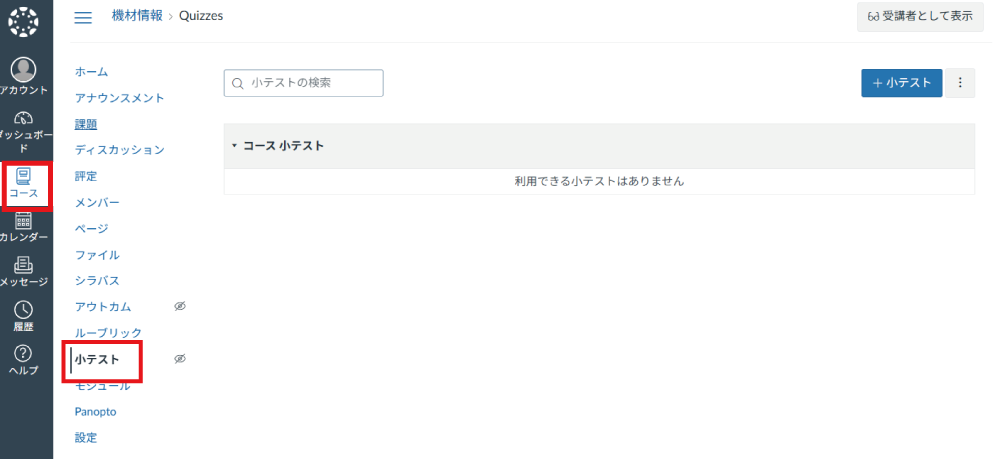
Access the course where you want to create a quiz, and click "Quizzes" from the Course Navigation.
. Configuring General Quiz Settings
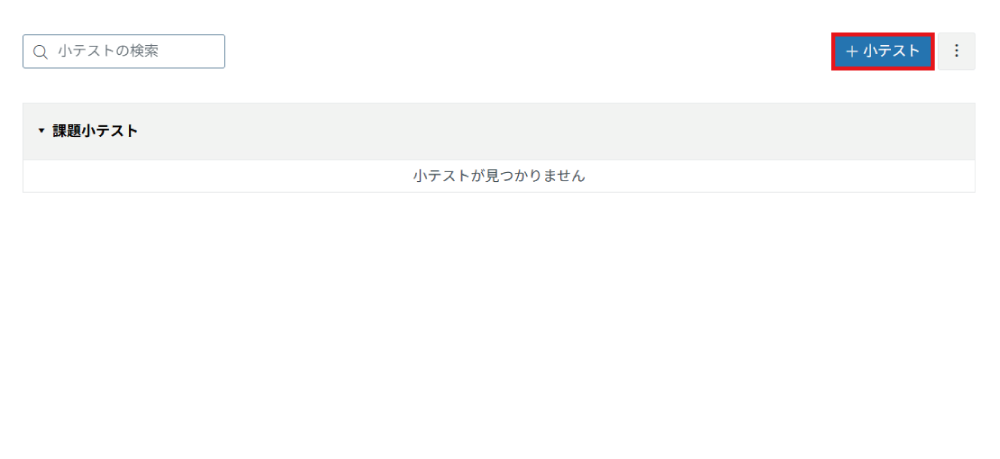
Click "+ Quiz".
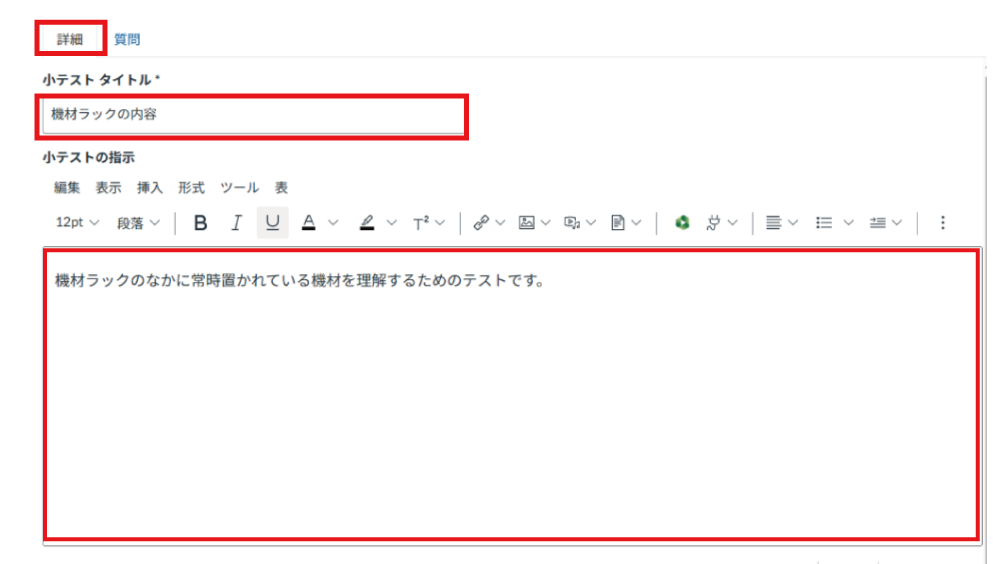
Enter the quiz title and instructions in the "Details" tab. Questions are created from the "Questions" tab, so please enter the description for this quiz in the instructions text area.
For the quiz type, select "Practice Quiz" (ungraded) or "Graded Quiz".
There are two assignment groups: "Assignments" and "Impressions from watching the video", but please select "Assignments".
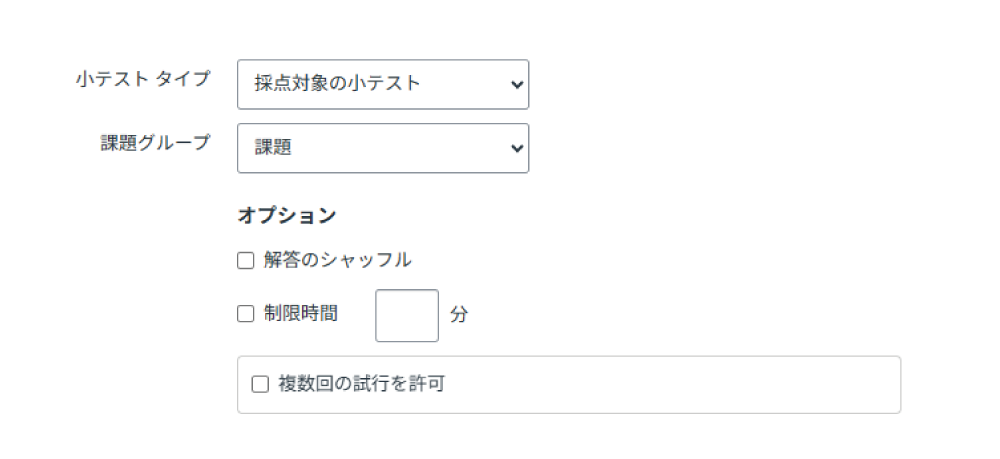
Configure options as needed.
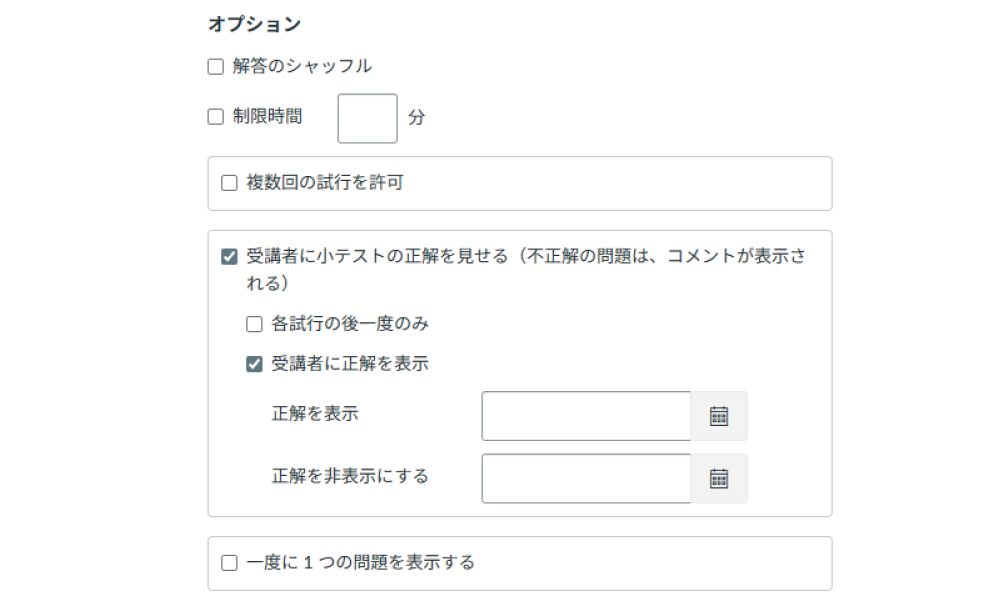
- Shuffle Answers
- Shuffles the answer choices.
- Time Limit
- You can set a time limit.
- Show one question at a time
- If you check this, the "Lock questions after answering" checkbox will appear. Questions will be displayed one by one, and students will not be able to return to the previous question after moving on.
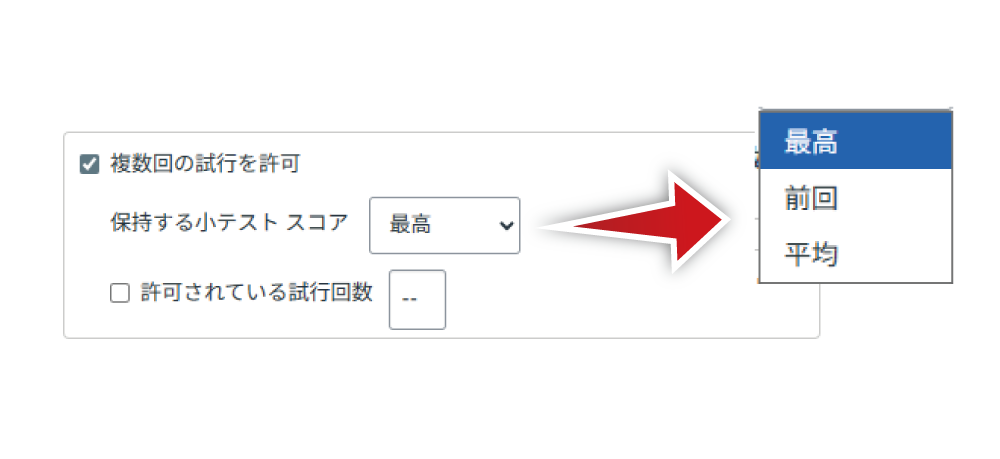
If it is a graded quiz and you want to allow multiple attempts, check "Allow Multiple Attempts" and select a quiz score to keep: "Highest", "Latest", or "Average". Also, if you want to set a limit on the number of attempts, check "Allowed Attempts" and enter the maximum number. If "Allowed Attempts" is unchecked, it is unlimited.
You can decide when to show students their quiz responses (correct/incorrect) after they take the quiz.
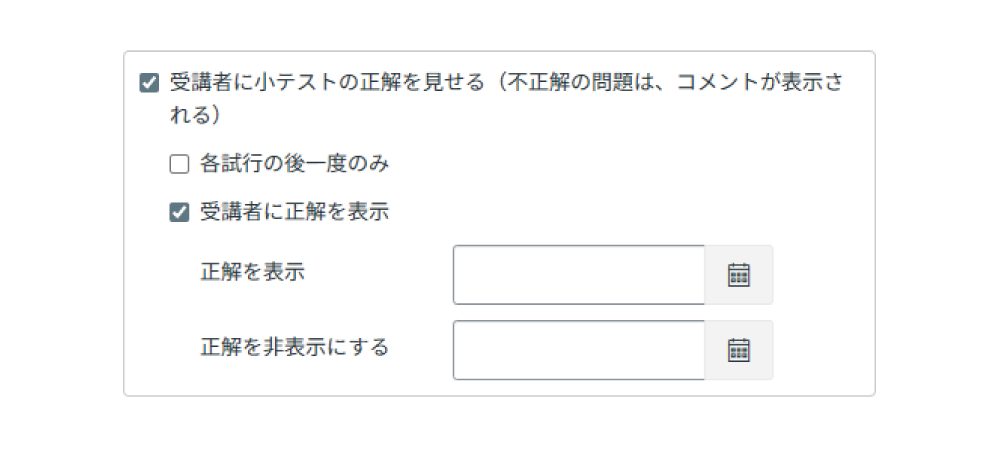
- Only Once After Each Attempt
- Checking only "Only Once After Each Attempt" will not show the correct/incorrect results to students.
- Only Once After Each Attempt
Let Students See The Correct Answers - If both are checked, the correct answers will be displayed only once immediately after submitting the quiz.
- Let Students See The Correct Answers
- The correct/incorrect results will always be displayed when a student accesses the same quiz again. Therefore, you can set a publication date and time.
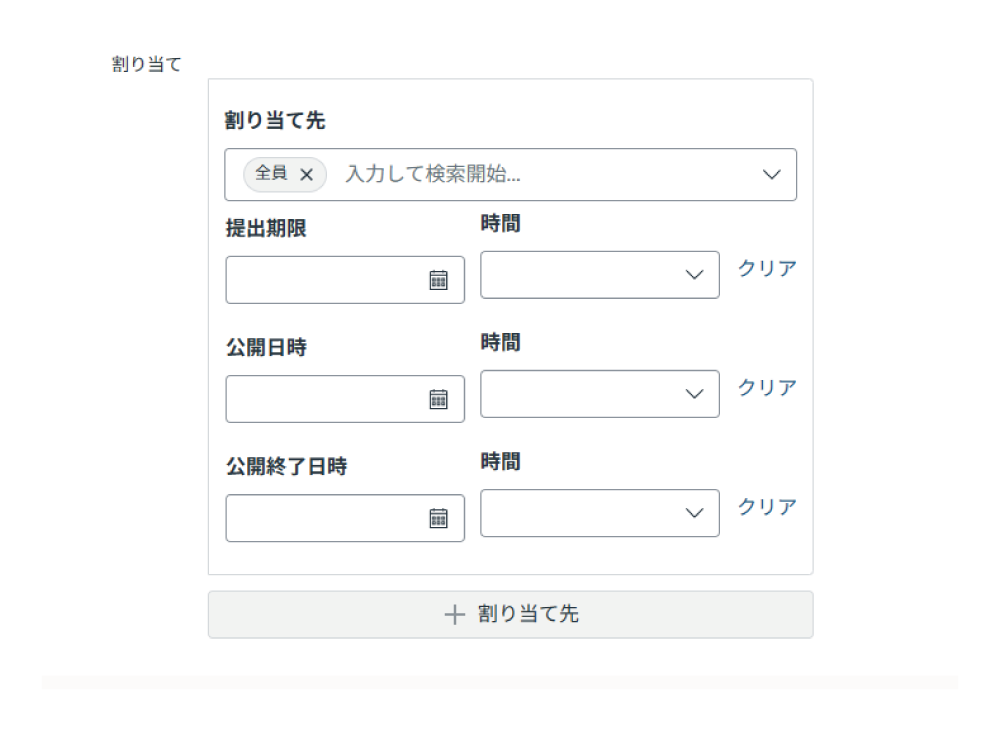
Set dates and times such as the due date as needed.
. Creating Quiz Questions
Click the "Questions" tab to create questions.
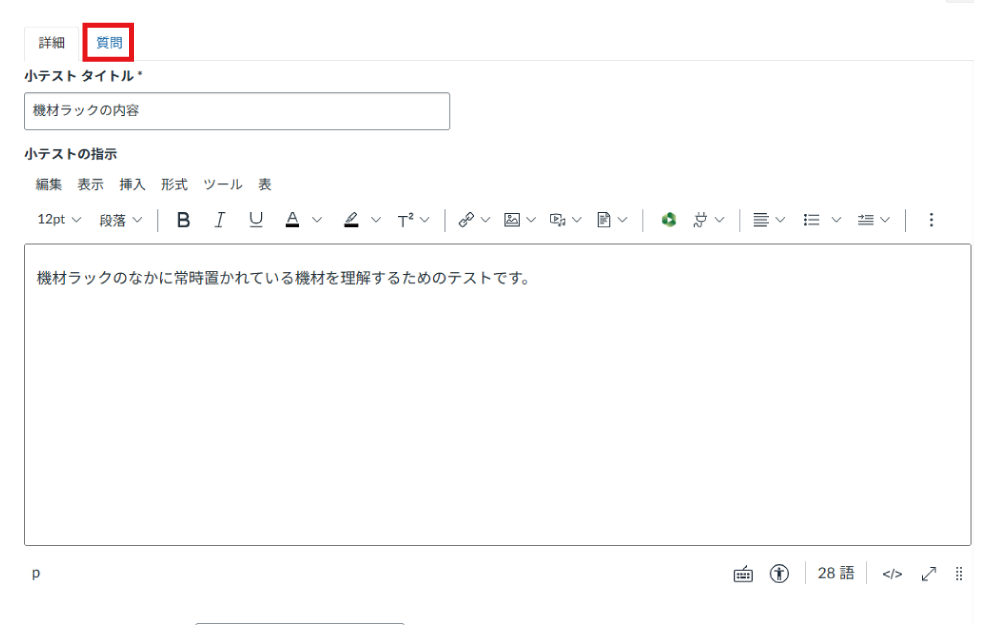
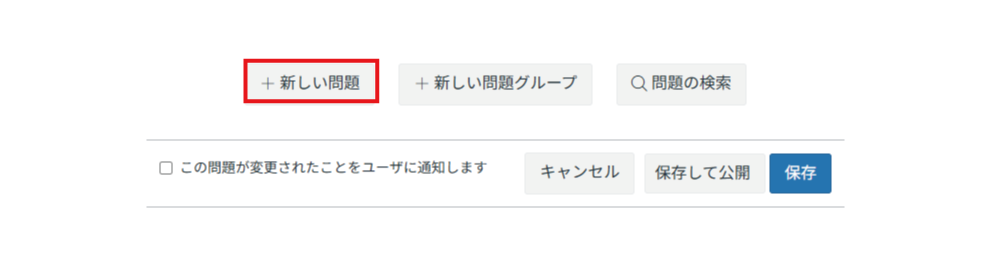
Click "+ New Question".
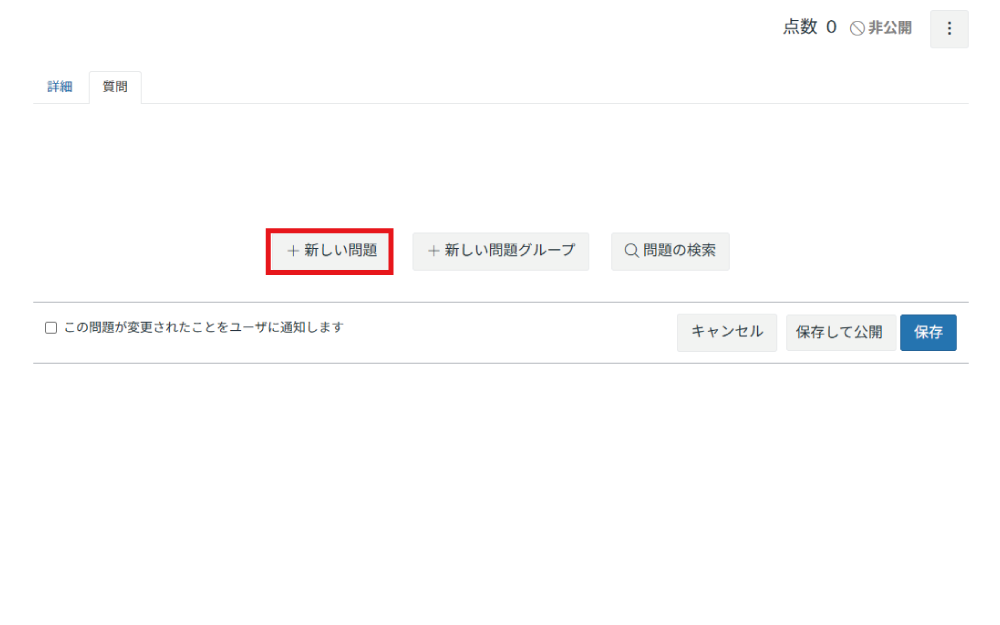
Enter the question title (e.g., numbering) and the question text. Also, enter the points for this question in the upper right.
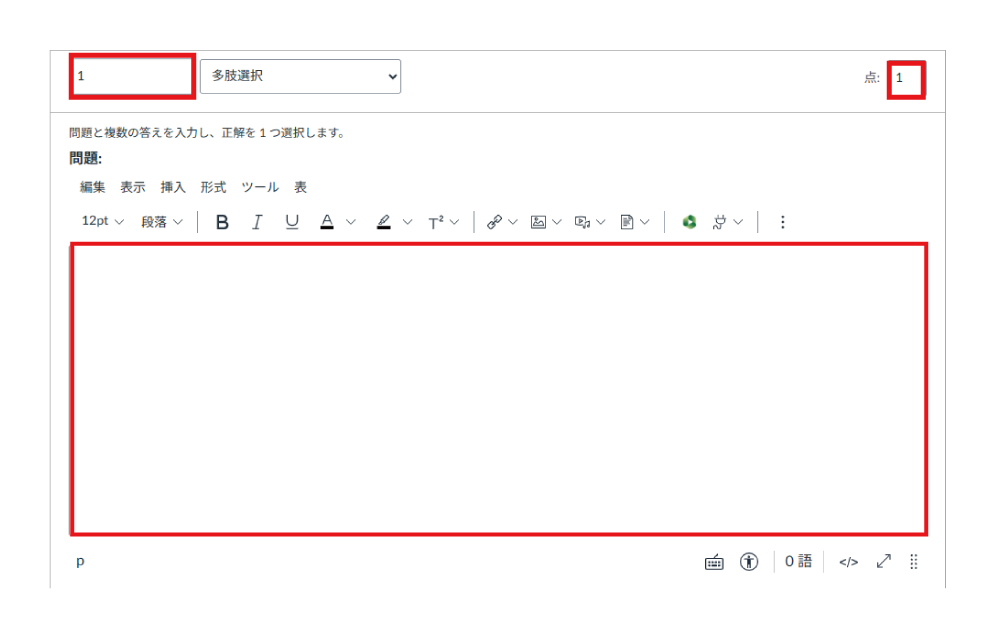
Select the question type.
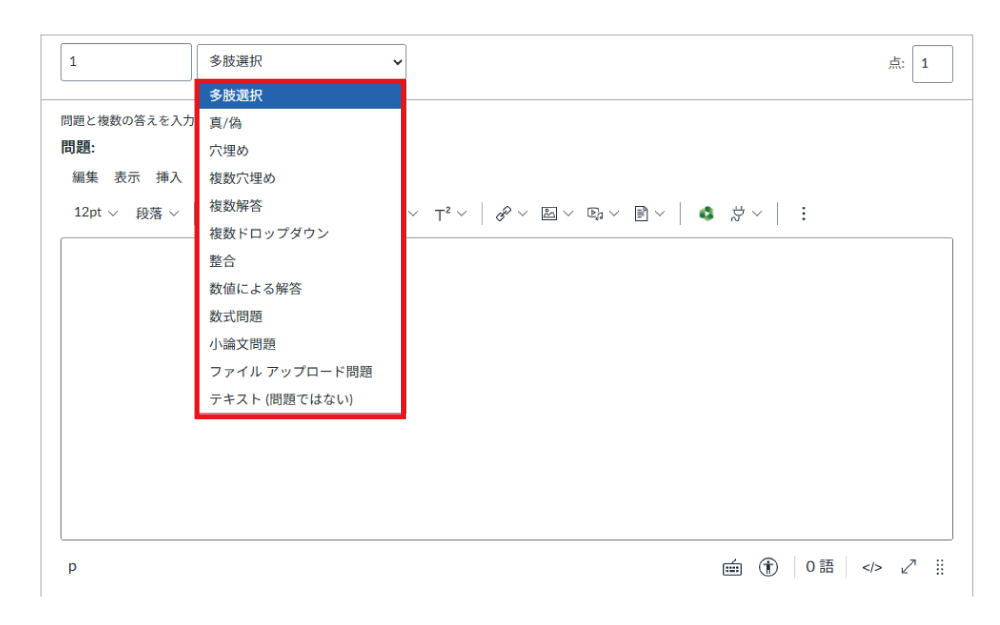
- Available Question Types
- Overview
- Multiple Choice
- Requires selecting one correct answer from multiple choices.
- True/False
- A two-choice format of true or false.
- Fill In the Blank
- Enter the question text and define all possible correct answers for the blank space.
- Fill In Multiple Blanks
- A format with multiple blanks for a single question.
- Multiple Answers
- Requires selecting all correct answers from multiple choices.
- Multiple Dropdowns
- Requires selecting answers from multiple prepared dropdown lists for a single question.
- Matching
- Build pairs of matching values. Students must look at the value on the left and select the matching value on the right from a dropdown. Multiple rows can have the same answer. You can also add additional distractors on the right side.
- Numerical Answer
- Define the correct answer as an exact number within a range, or a number with an allowed margin of error.
- Formula Question
- There is a 'Need help?' link; please refer to it to require an answer using a formula.
- Essay Question
- Allows students to answer with text/essay.
- File Upload Question
- Requires students to upload a file as their answer. Canvas LMS has a capacity limit of 50MB per user and 500MB per course. Uploads will be blocked if the capacity is exceeded, so if there are many students, please use other methods such as submitting a shared link from Google Drive.
- Text (no question)
- This is an area for faculty to enter text. It does not display an input area for students; if you need that, please use an Essay Question.
To continue creating questions, click "+ New Question" and repeat the process.
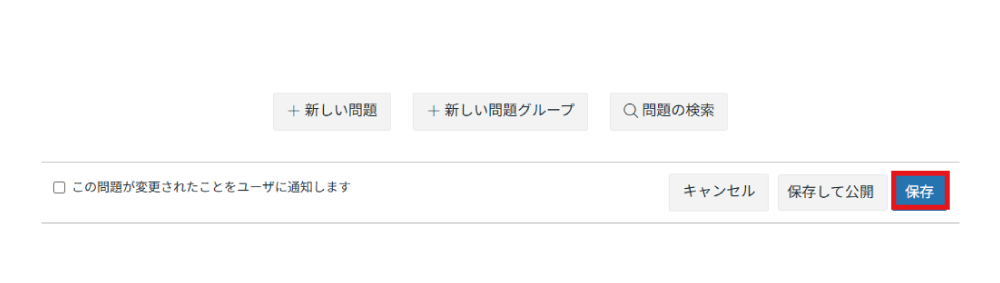
When finished creating questions, click "Save". Clicking "Save & Publish" will save and change the status from unpublished to published immediately.
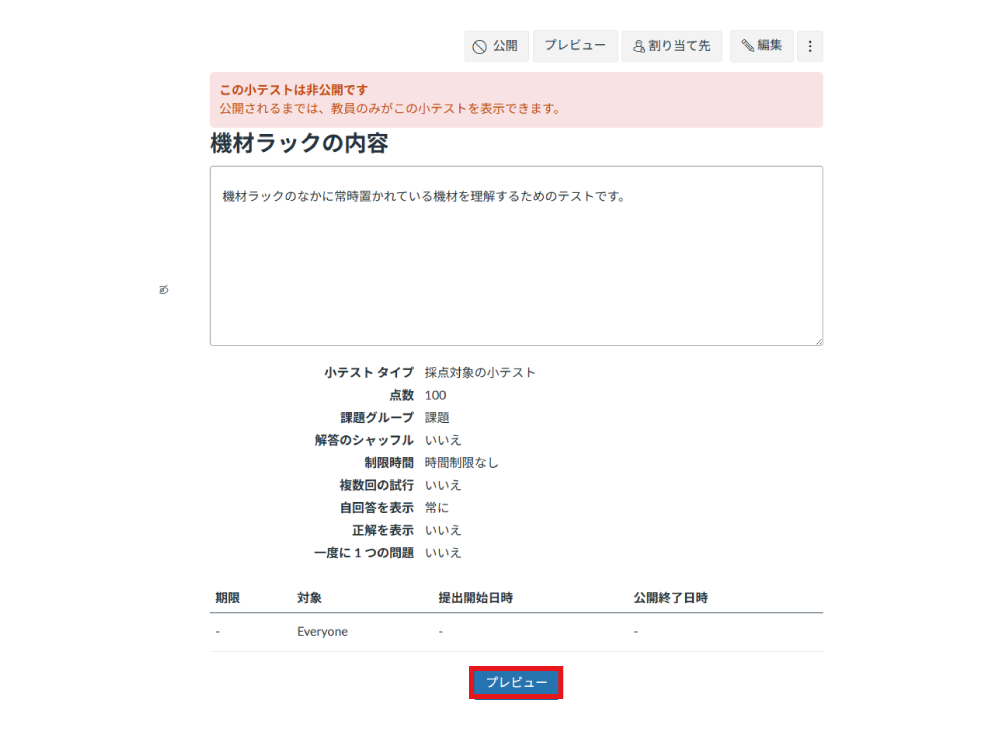
Clicking "Save" displays a summary of the configured quiz "Details". Click "Preview" if you want to review the created questions. The quiz must be published for students to take it.
If you have created a module, you can also add it to the respective module.
. Editing Quiz Questions
Access the course where you want to edit the quiz, and click "Quizzes" from the Course Navigation.