. Adding Course Materials to a Module
. Reordering Materials in a Module
. Adding Files Directly from Your Computer to a Module
. What is a Module?
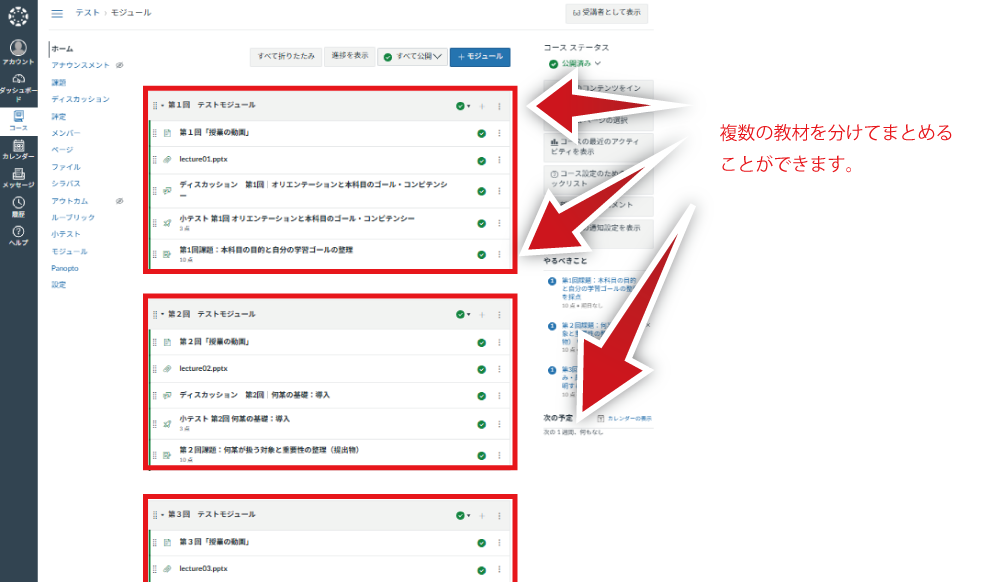
Modules allow you to organize and group multiple course materials together. You can structure them flexibly, such as by class session or by material topic.
. Creating a Module
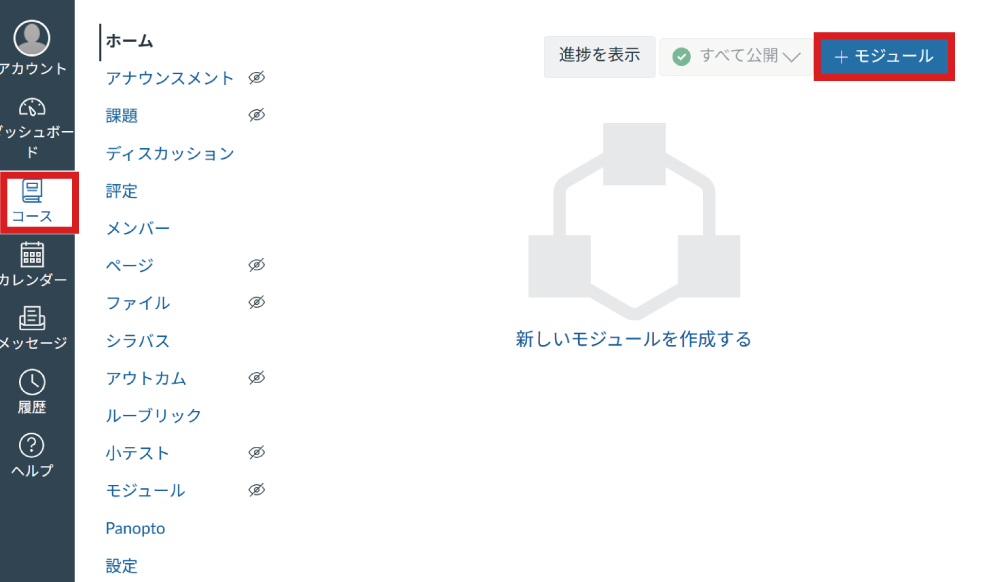
If no modules have been created yet, click the "Create a New Module" link or click "+ Module" in the upper right corner.
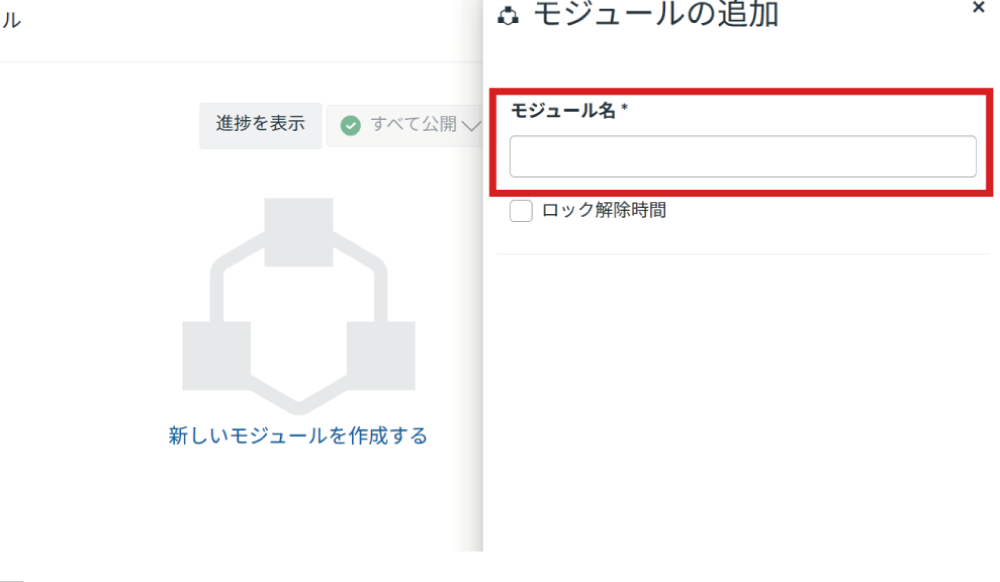
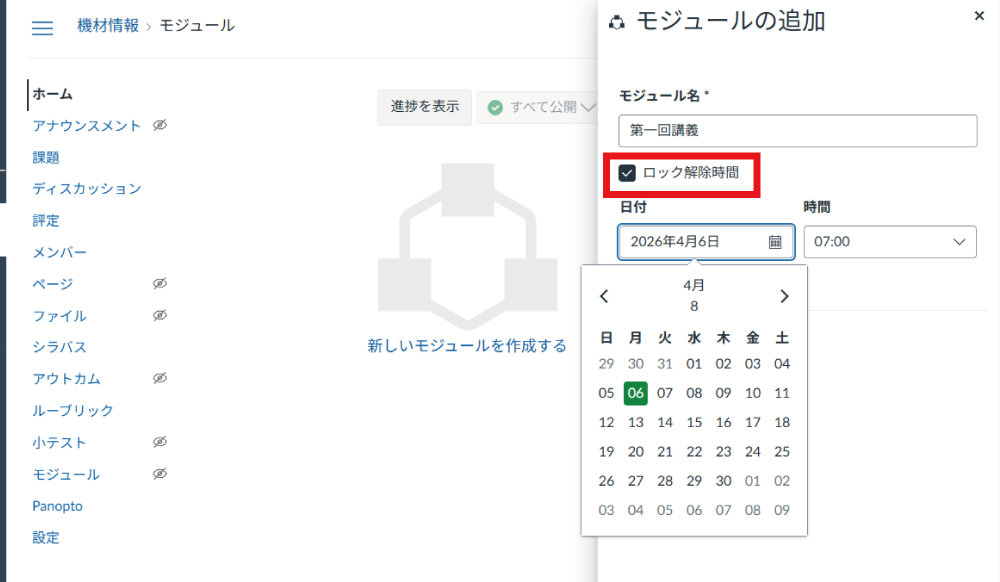
Enter the module name.
If you want to specify a release date and time for the materials added to the module, check "Lock until" to set the date and time. If your desired time is not in the dropdown menu, you can enter it directly.
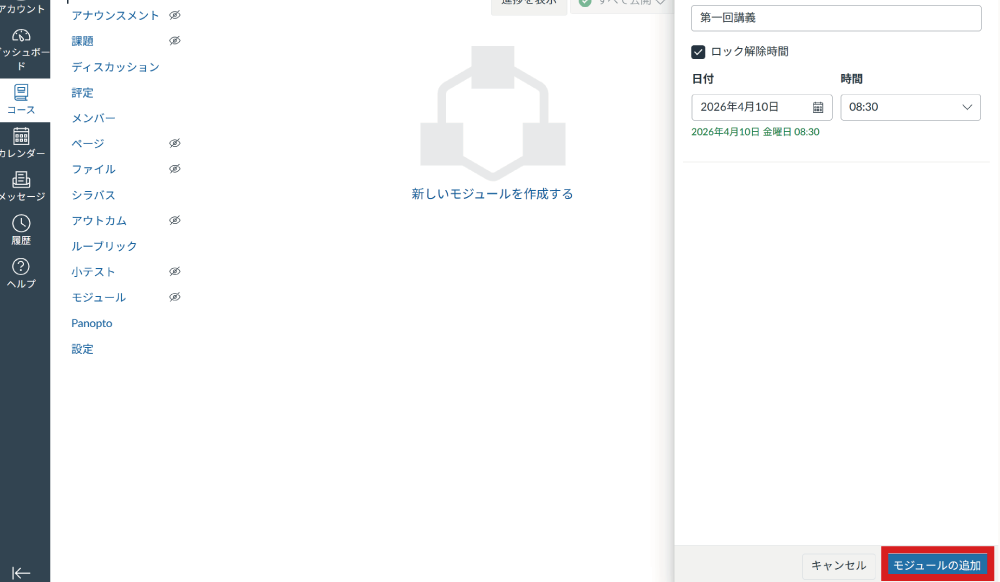
Click "Add Module".
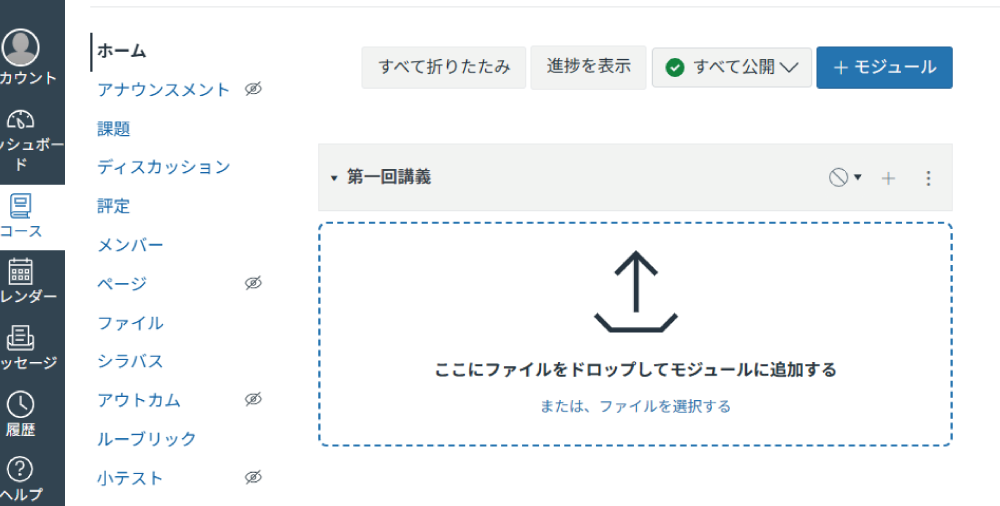
The module is added to the course.
. Adding Course Materials to a Module
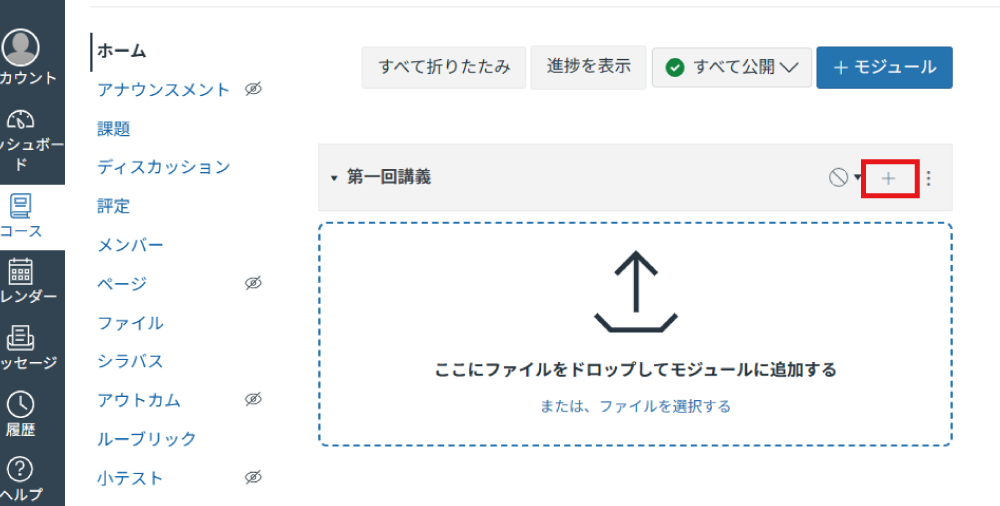
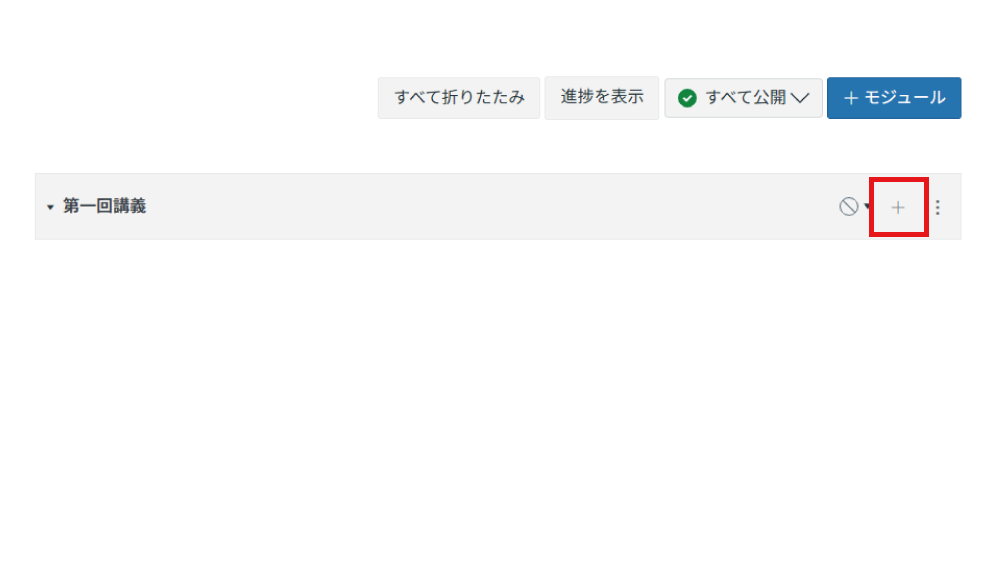
Click the "+" icon on the right side of the module.
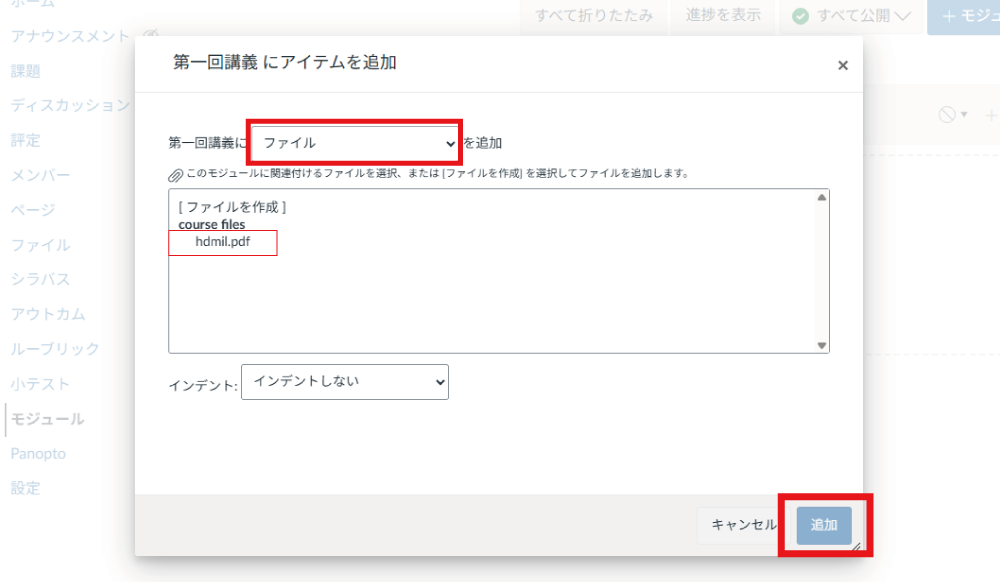
Select the material item you want to add.
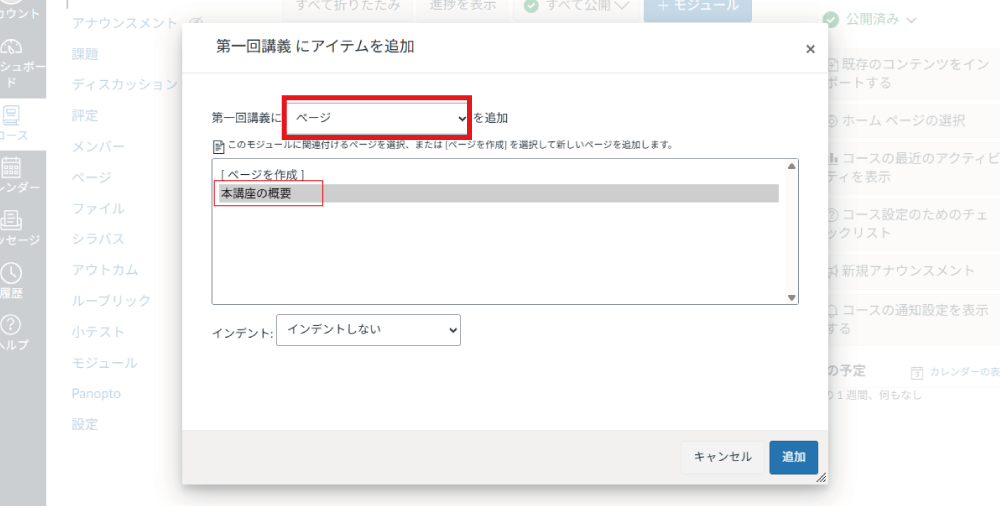
Click "Add Item".
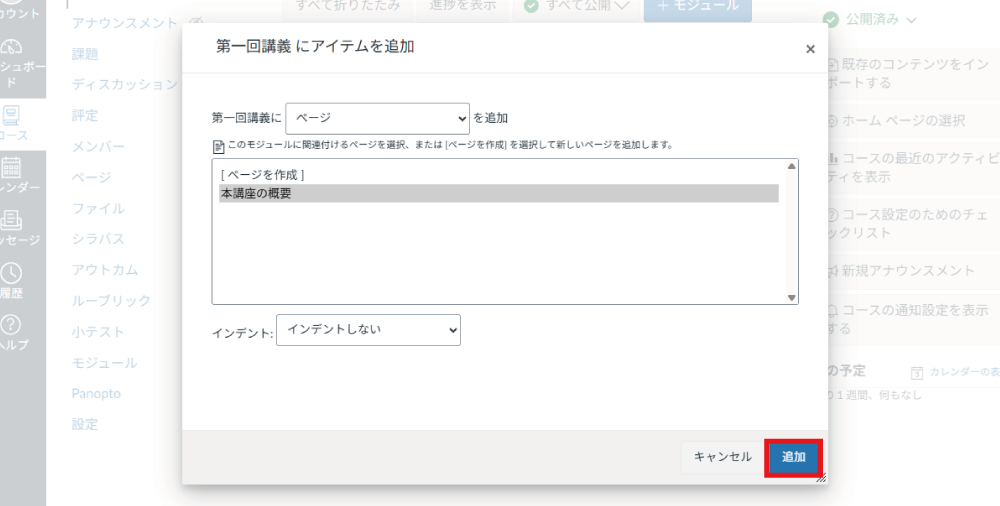
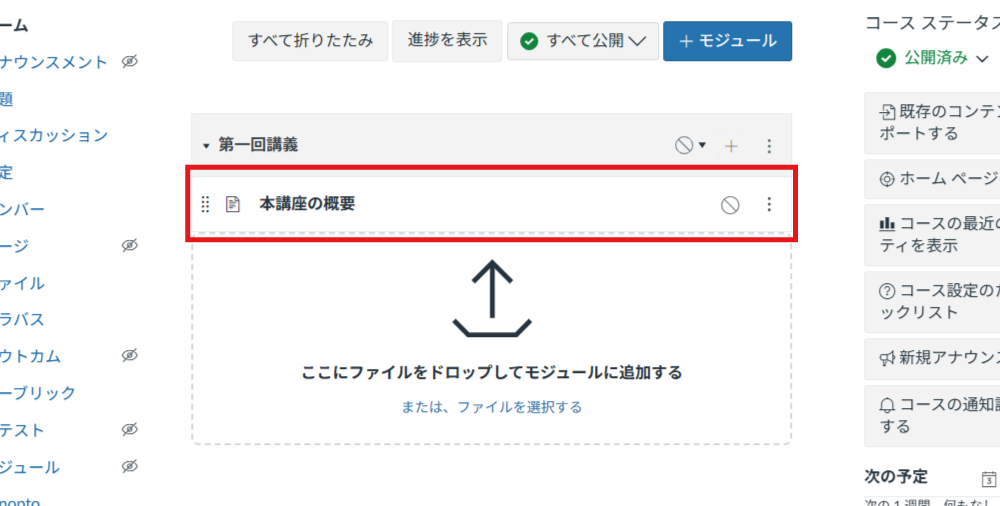
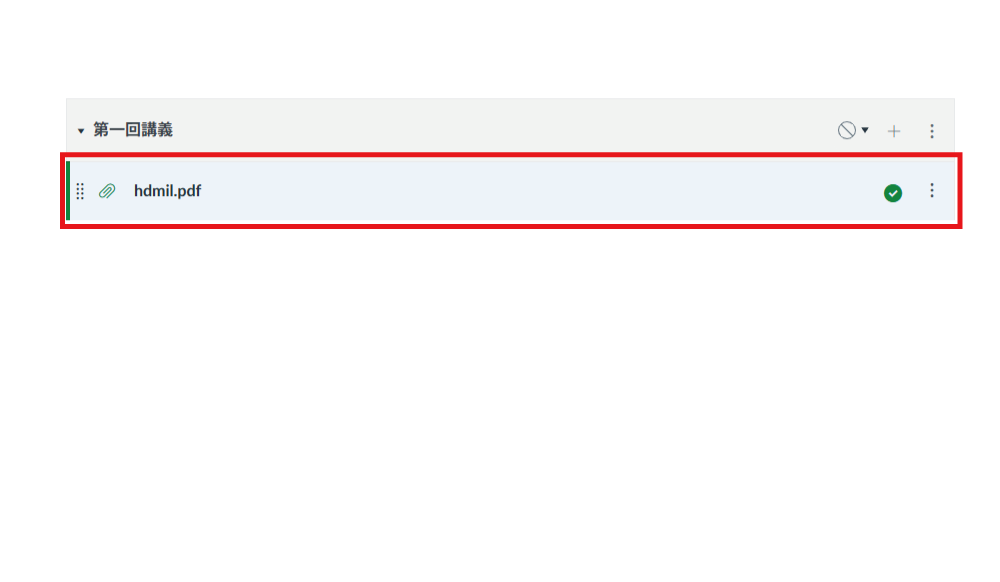
The selected item is added to the module.
. Reordering Materials in a Module
You can reorder items by clicking and dragging the drag handle (composed of 8 dots: 2 wide by 4 tall) up or down.
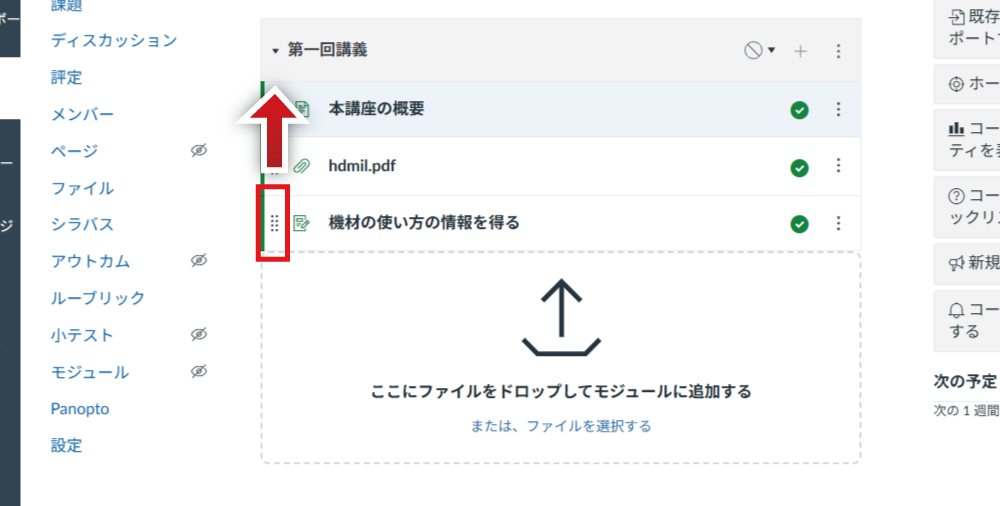
When the mouse cursor hovers over a draggable point, it changes into a four-way arrow; click and hold to drag the item.
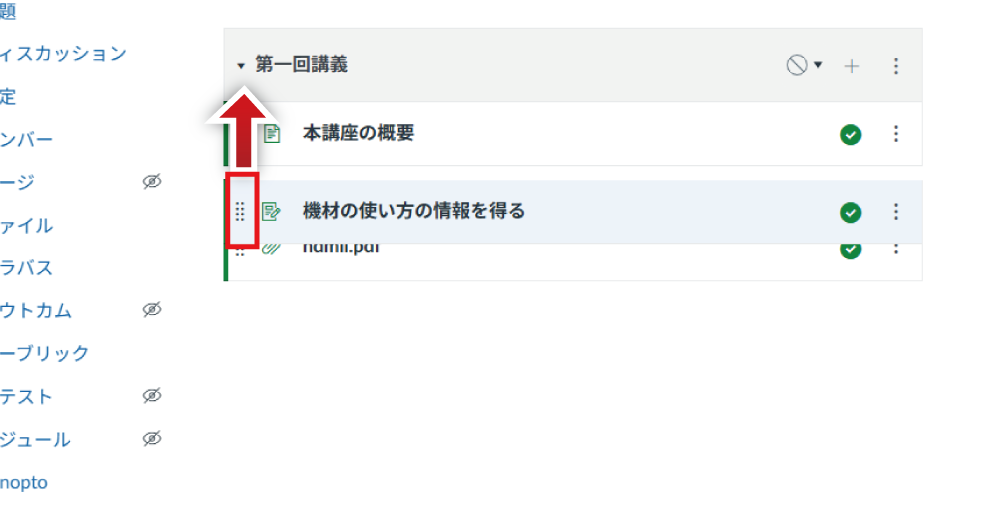
Drag the item to your desired position and release it.
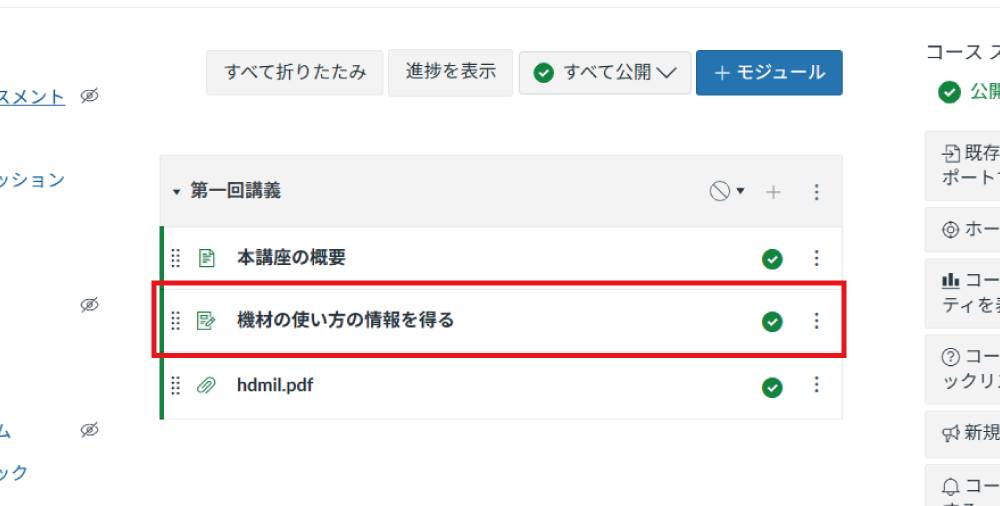
. Adding Files Directly from Your Computer to a Module
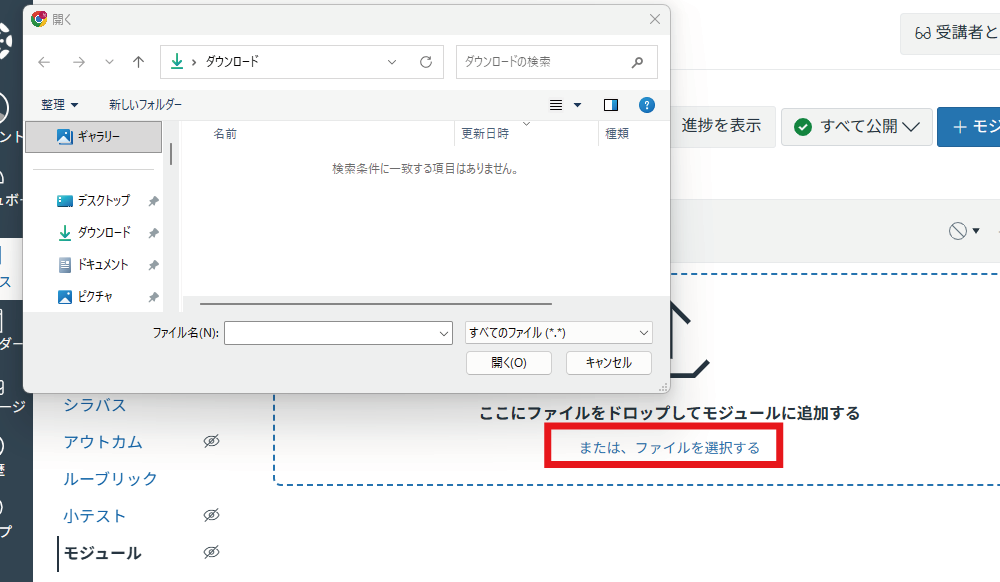
Drag and drop a file onto the created module, or click "or choose files". (The screenshot shows the screen when "or choose files" is clicked; it does not appear during drag-and-drop.)
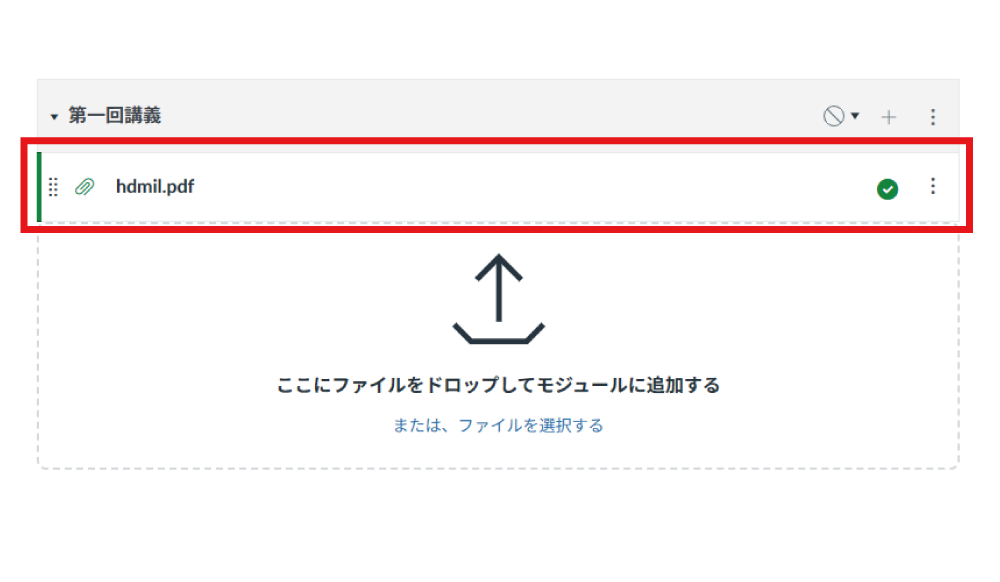
The added file will appear in the module.
. Notes on Adding Materials to a Module
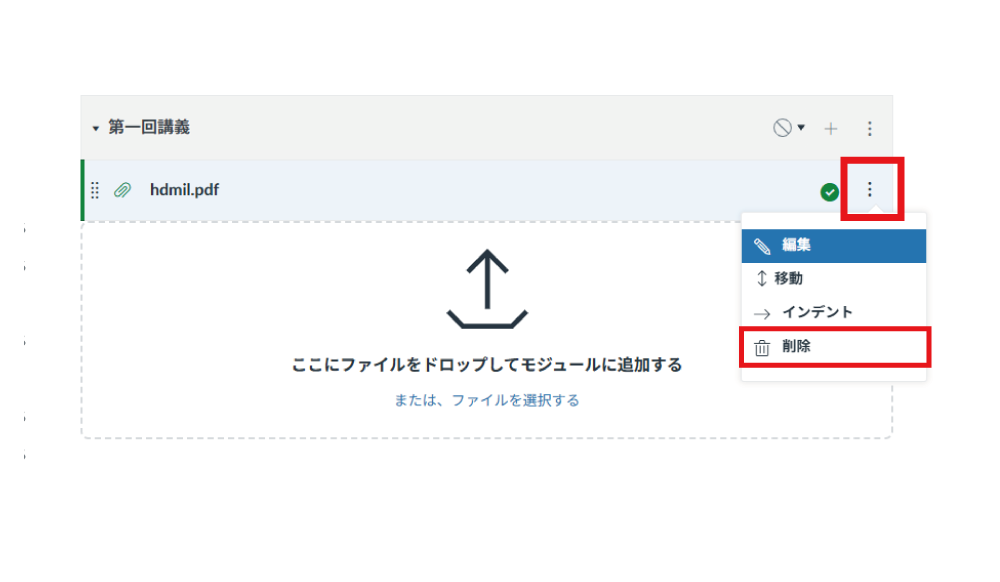
When you remove an added file from a module, the "Drop files here to add to module" prompt may disappear.
Items removed from a module are not deleted permanently. They remain in their respective sections such as "Assignments" or "Pages" in the Course Navigation.
If you want to add the item again, click the "+" icon to the right of the module title.
For example, select "File" from the dropdown list; the file previously removed from the module will be displayed below. Select it and click "Add Item".
The selected file will be added to the module again.
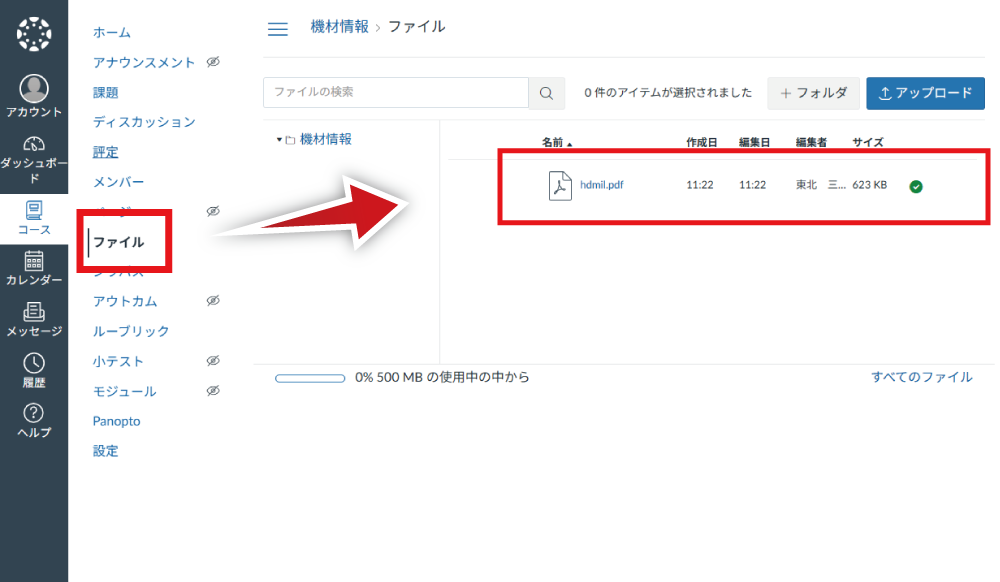
Files that have been dragged and dropped once remain stored in "Files" in the Course Navigation even if they are removed from the module.
. Editing a Module
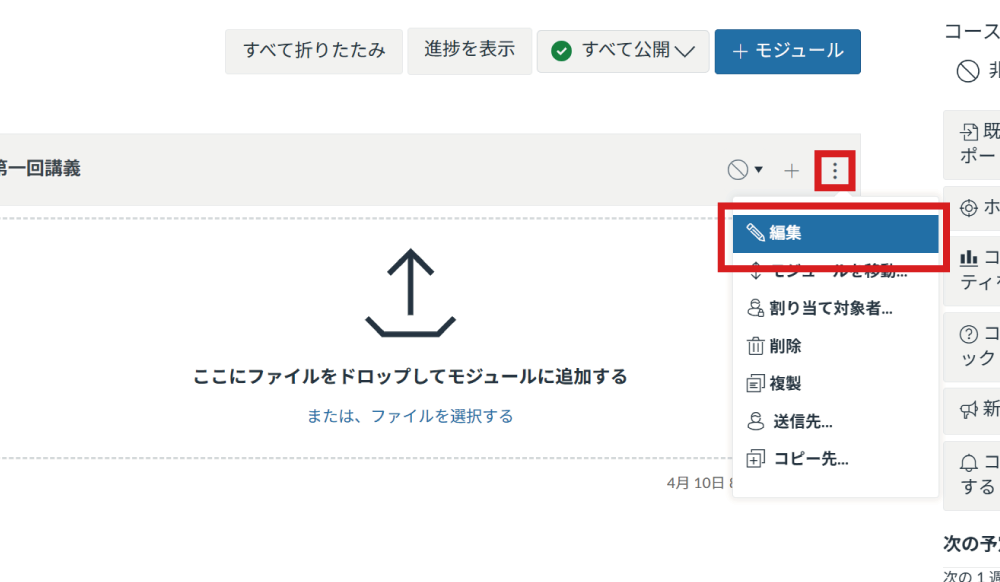
To edit a module item, click the three vertical dots (options icon) and select "Edit".