. Uploading Files
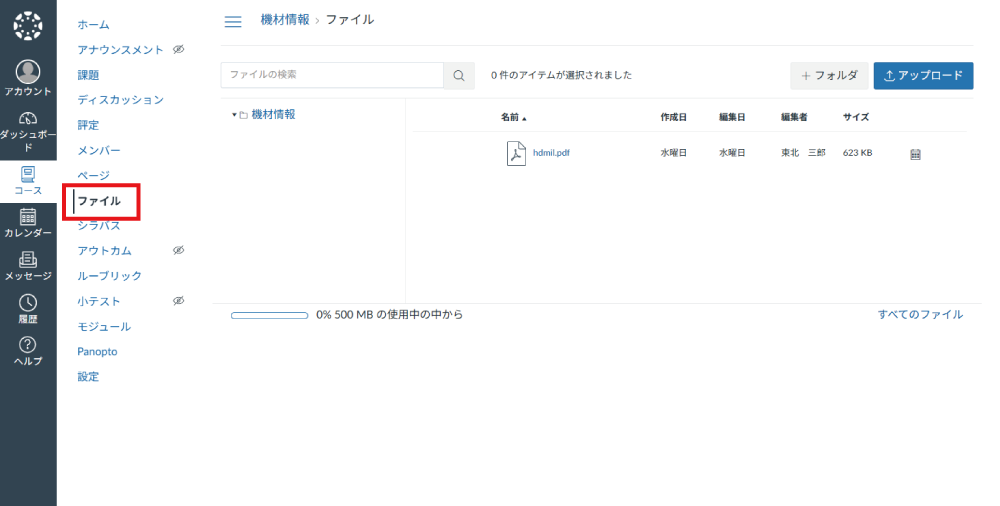
Access the course where you want to upload files and click "Files" in the Course Navigation.
If you have already created a module, you can also add files directly to the module.
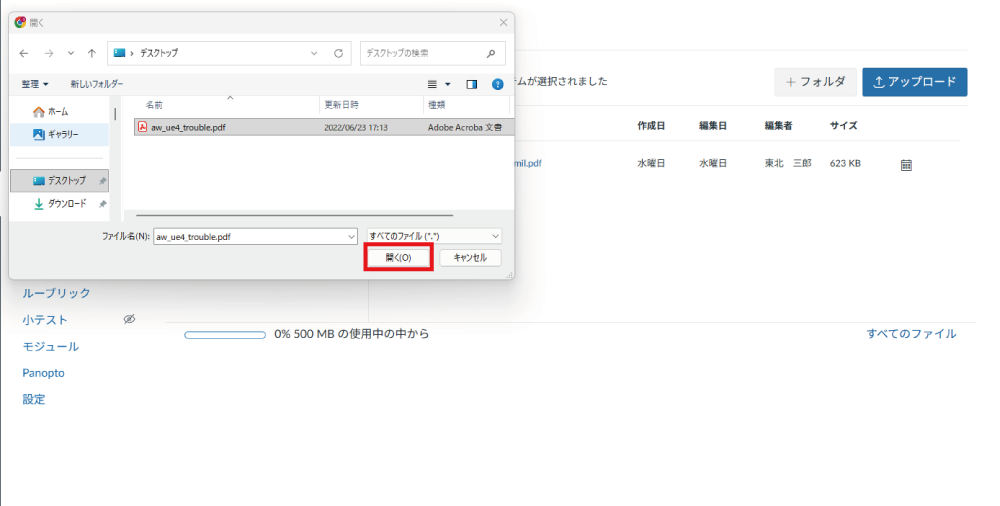
Click "Upload", select the file you want to upload, and open it.
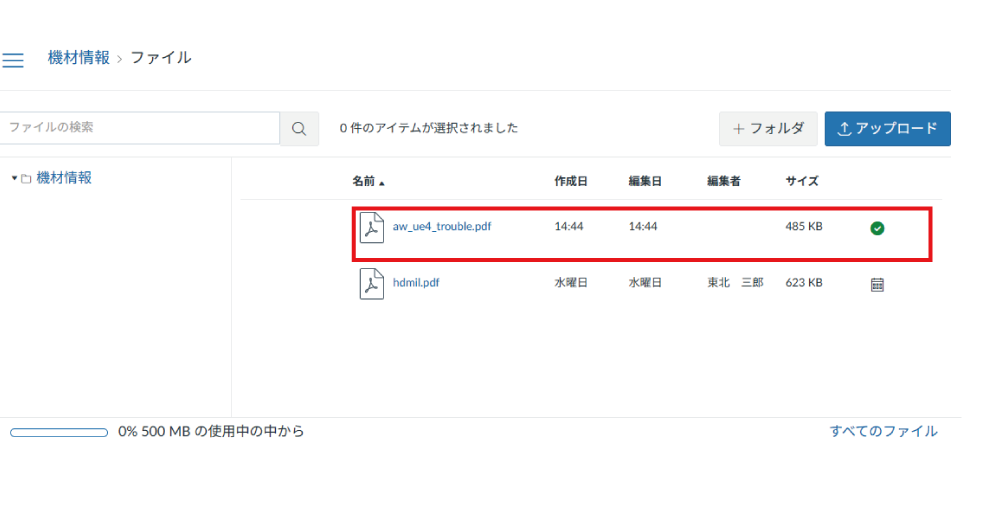
The uploaded files will appear in the list.
Uploaded files are set to "Published" by default. Please note that if the Files menu is visible in the course navigation, students can view the files immediately after they are uploaded.
If you wish to keep them unpublished temporarily, you will need to change the publication status immediately after uploading.
You can also hide the Files menu in the course navigation in advance.
. Changing File Publication Status
Click "Files" in the Course Navigation.
If you added the file directly to a module, you can change its publication status from there as well.
Click the checkmark icon of the file whose publication status you want to change.
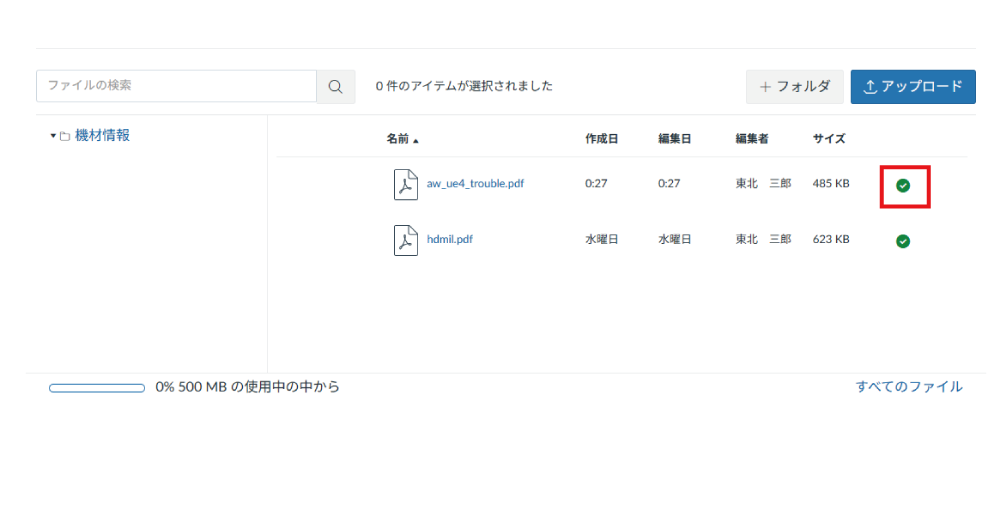
Select your desired publication status under "Publish State" and click "Update".
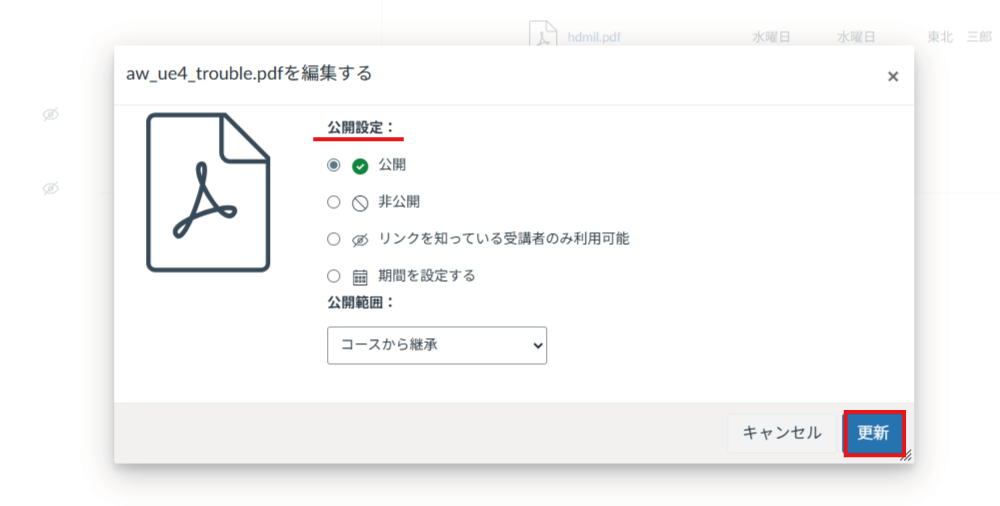
- Published
- The file will be published and accessible to students.
- Unpublished
- The file will not be visible to students.
- Only available to students with link
- The file will not appear when students access Files from the Course Navigation. It is only hidden from the Files menu; if added to Modules, Pages, etc., students can still access and view it.
- Schedule availability
- You can set available dates and times. The file will not appear in the Course Navigation Files list. If added to Modules or Pages, the title will be displayed and clickable, but the file content will remain locked with a message such as "This file is locked until Month Day, hh:mm".
. Deleting Uploaded Files
Click "Files" in the Course Navigation.
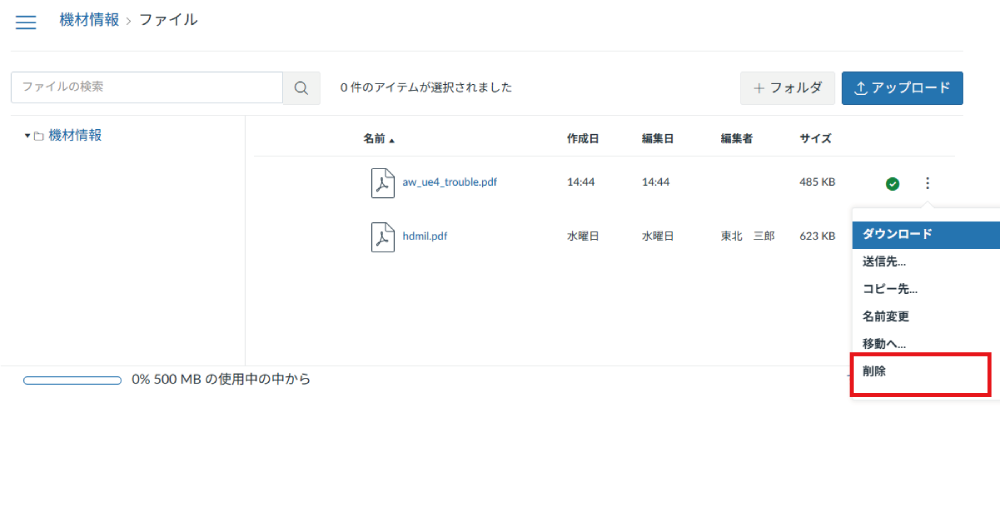
Click the three vertical dots (options icon) and select "Delete" to remove the file from the list.