. Copy All Content from the Source Course
You can duplicate and reuse content from an existing course you teach to another course.
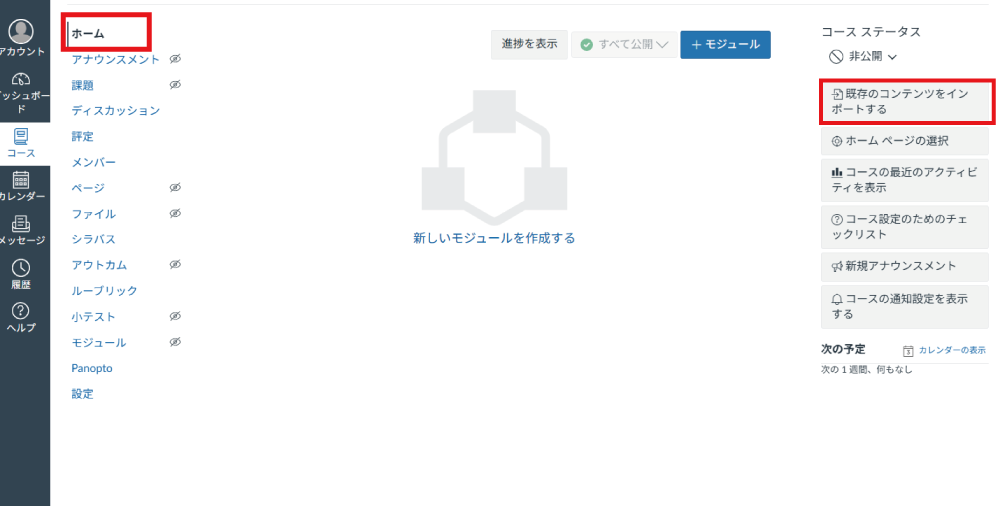
Access the destination course and click "Import Existing Content".
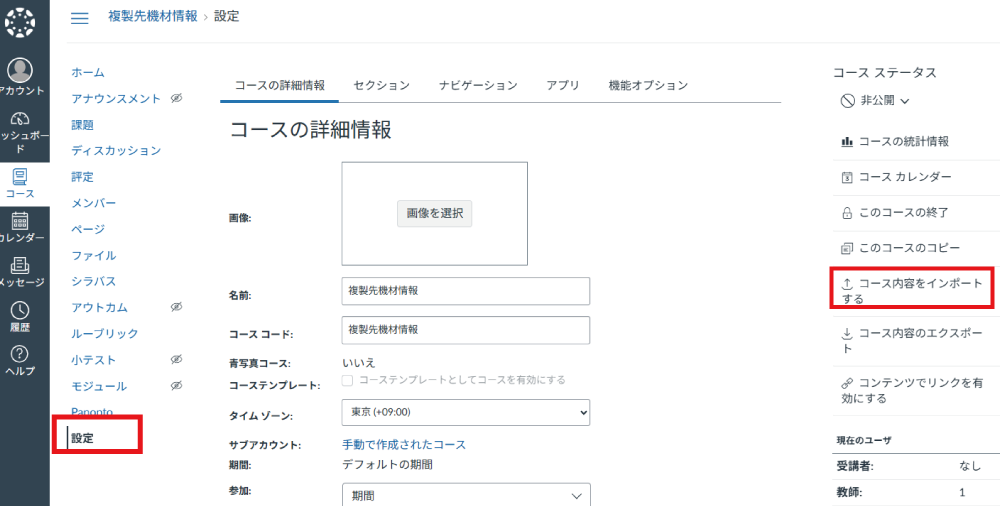
Or go to "Settings" in the destination course and click "Import Course Content".
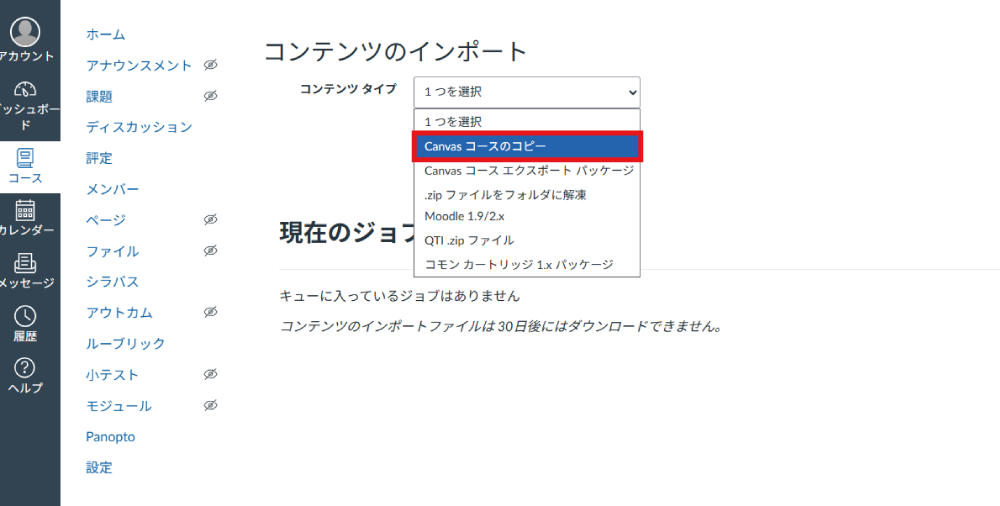
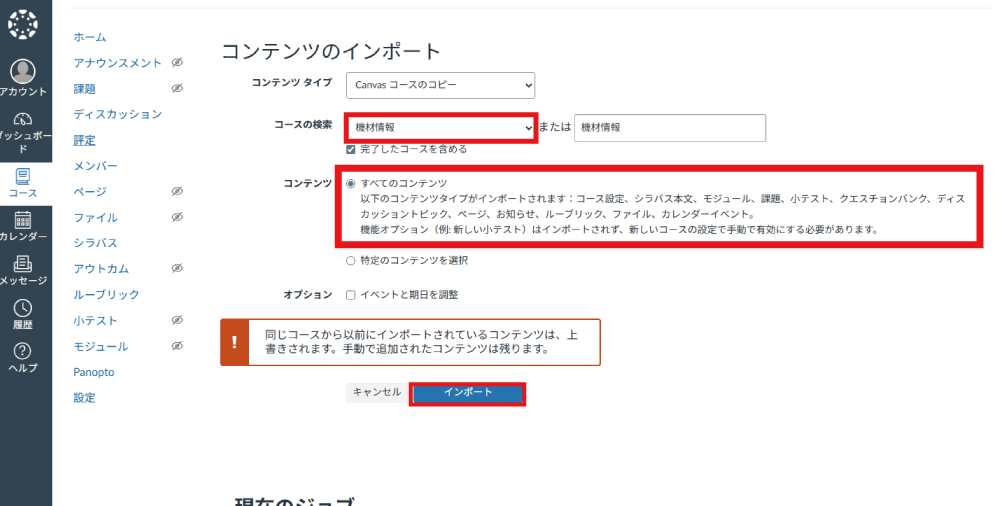
Under Content Type, select "Copy a Canvas Course".
Select the source course to copy from, choose "All content", and click "Import".
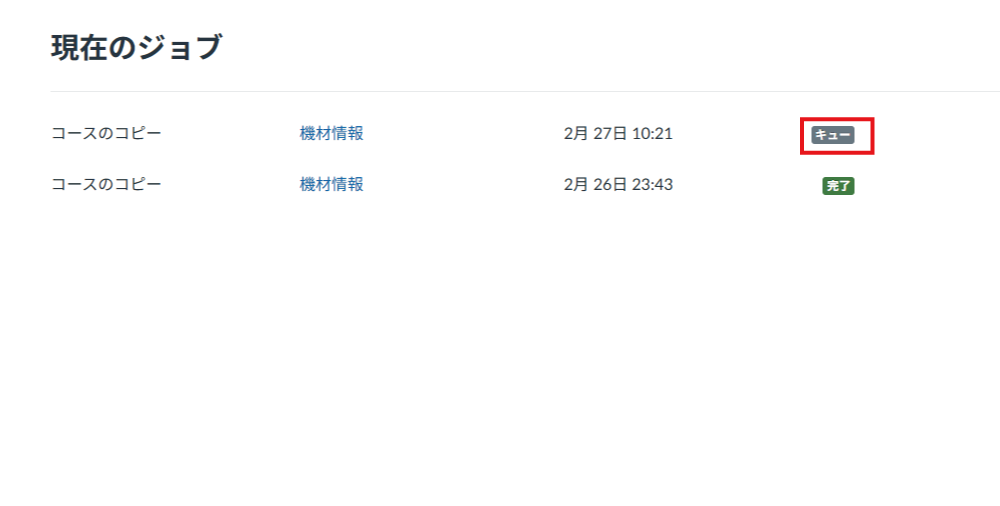
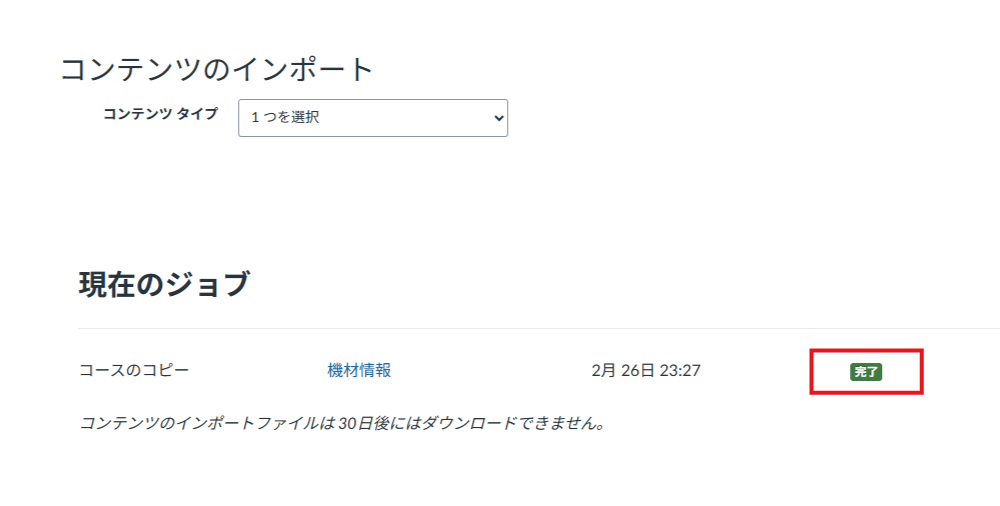
Wait until the status changes to "Completed".
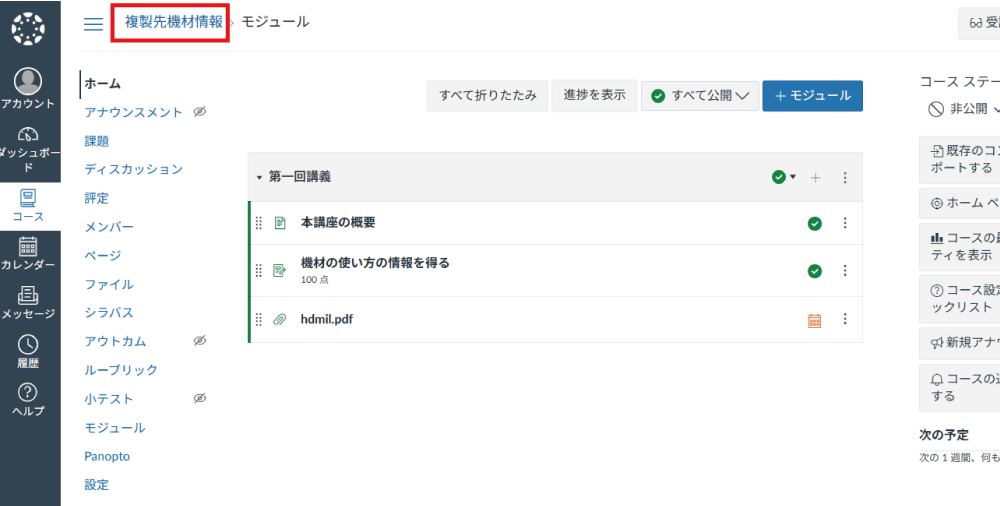
Confirm that the content from the source course has been copied to the destination course. (In the example, "[Destination Course]" has been appended to the course name to distinguish it from the source course.)
. Copy Selected Content from the Source Course
Access the destination course and click "Import Existing Content".
Or go to "Settings" in the destination course and click "Import Course Content".
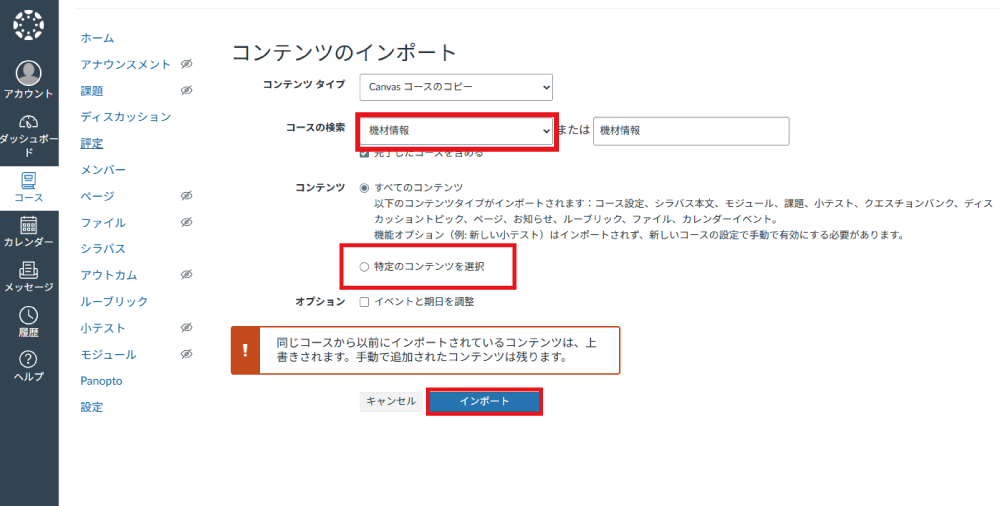
Under Content Type, select "Copy a Canvas Course".
Select the source course to copy from, choose "Select specific content", and click "Import".
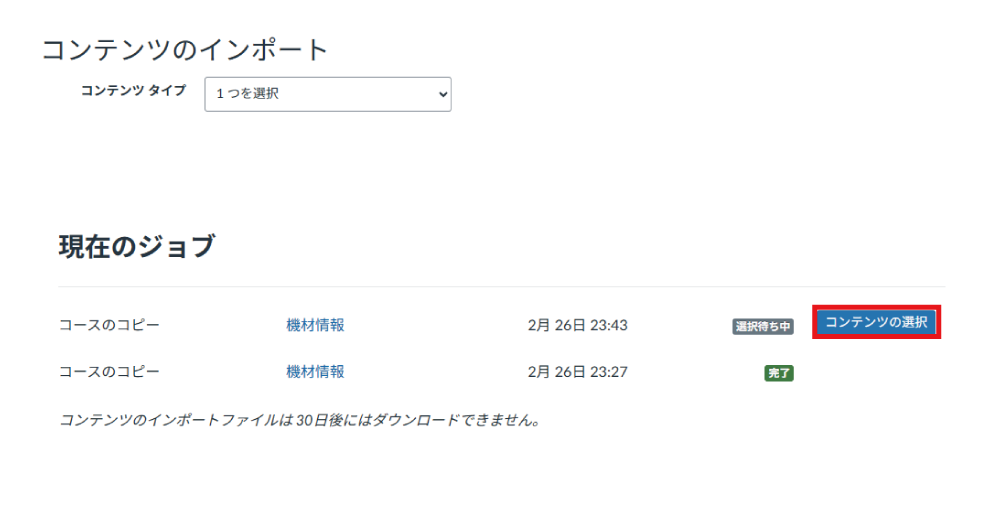
In Current Jobs, a row with the status "Waiting for Selection" will appear at the top. Click "Select Content".
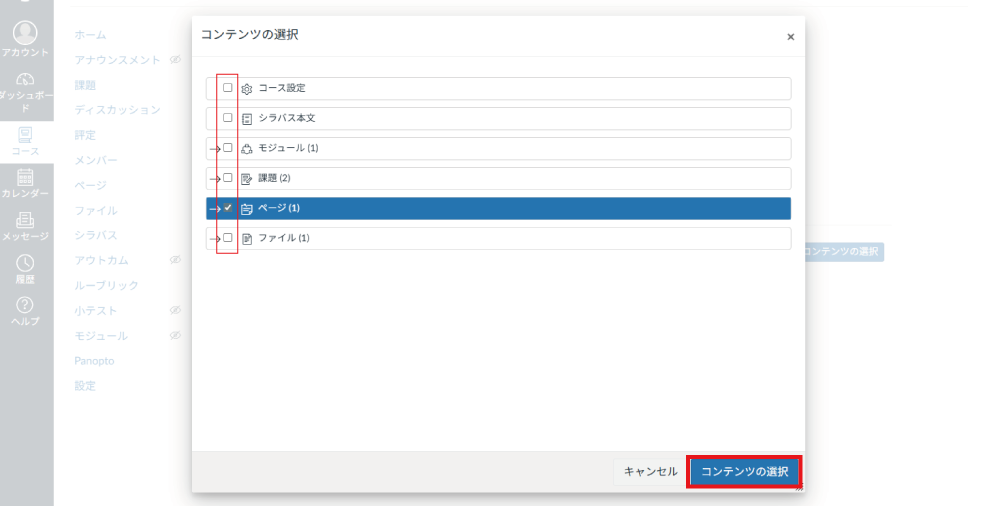
Check the items you want to copy and click "Select Content".
While the job is being processed, "Queued" will be displayed in the status. The copy is complete when the status changes to "Completed".