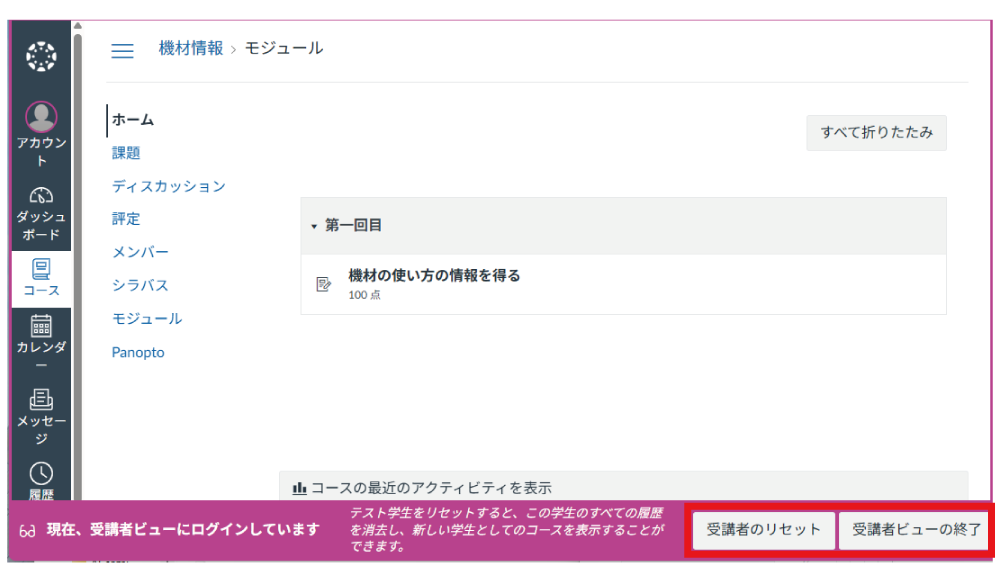
. Checking Student View
Use this feature when preparing course materials to verify how the content appears to students.
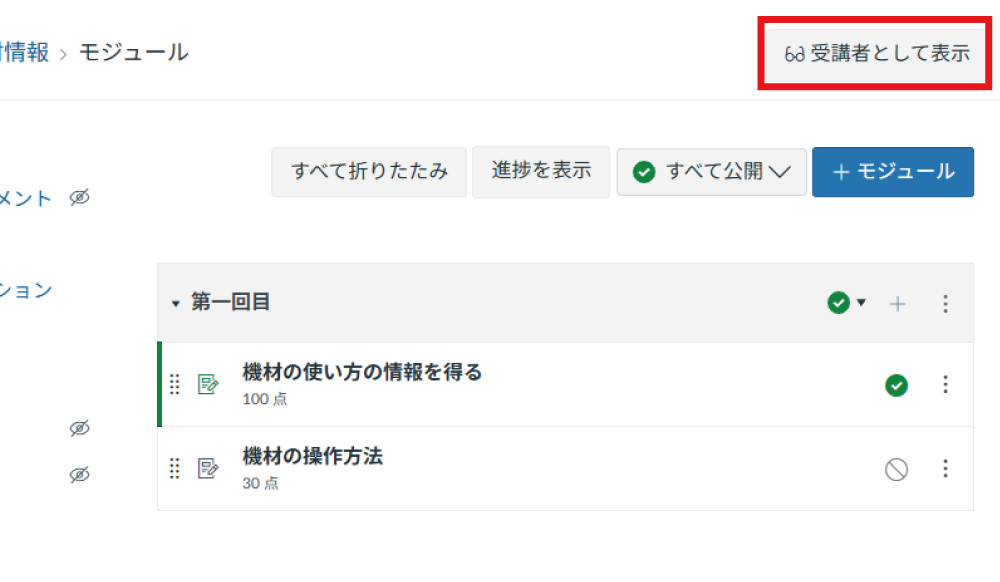
Click the "Student View" button displayed in the upper right corner of the course.
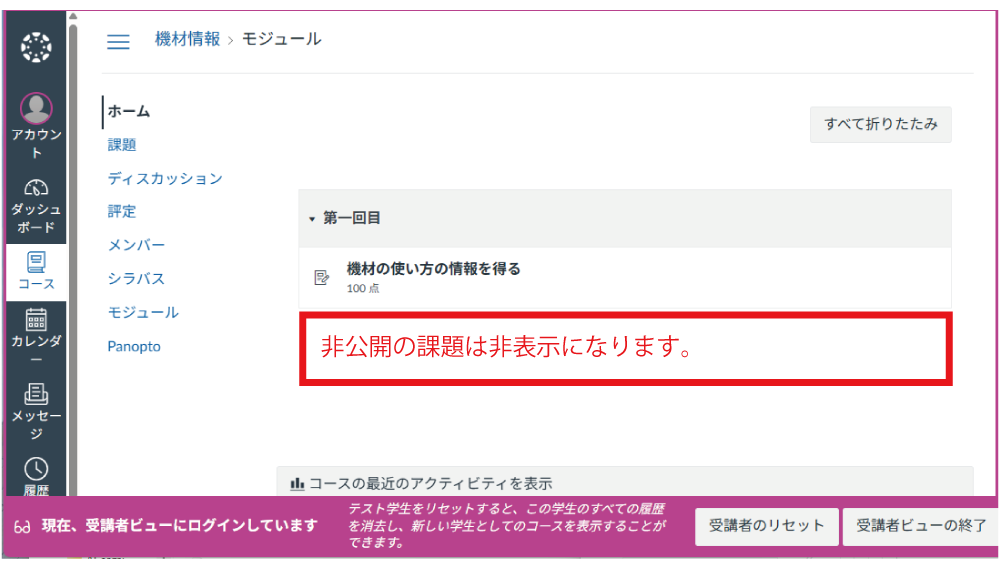
A wine-colored border will appear around the screen, and a message indicating that you are in Student View will be shown at the bottom. Unpublished course materials will not be displayed.
You can check the behavior of materials from a student's perspective. In this case, please click "Reset Student" before clicking "Leave Student View". Please note that if you exit without clicking "Reset Student", your activity history will remain recorded.